
Disclosure: This post contains Amazon affiliate links. If you buy through our links, we may earn a small commission at no extra cost to you.
Apple makes extraordinary MacBooks. Apple also gives them almost no ports.
The MacBook Air M3 has two Thunderbolt ports and a MagSafe connector. The MacBook Pro 14-inch adds HDMI and an SD card slot. That’s it. For anyone connecting an external monitor, a wired network, a USB-A drive, an SD card from a camera, and a charger at the same time — a USB-C hub isn’t optional. It’s essential.
The good news: in 2026, USB-C hubs have gotten remarkably capable. You can spend $22 and get a reliable 7-port hub that handles HDMI, USB-A, and 100W charging. Or spend $380 on an 18-port Thunderbolt 4 dock that powers a full dual-monitor workstation from a single cable.
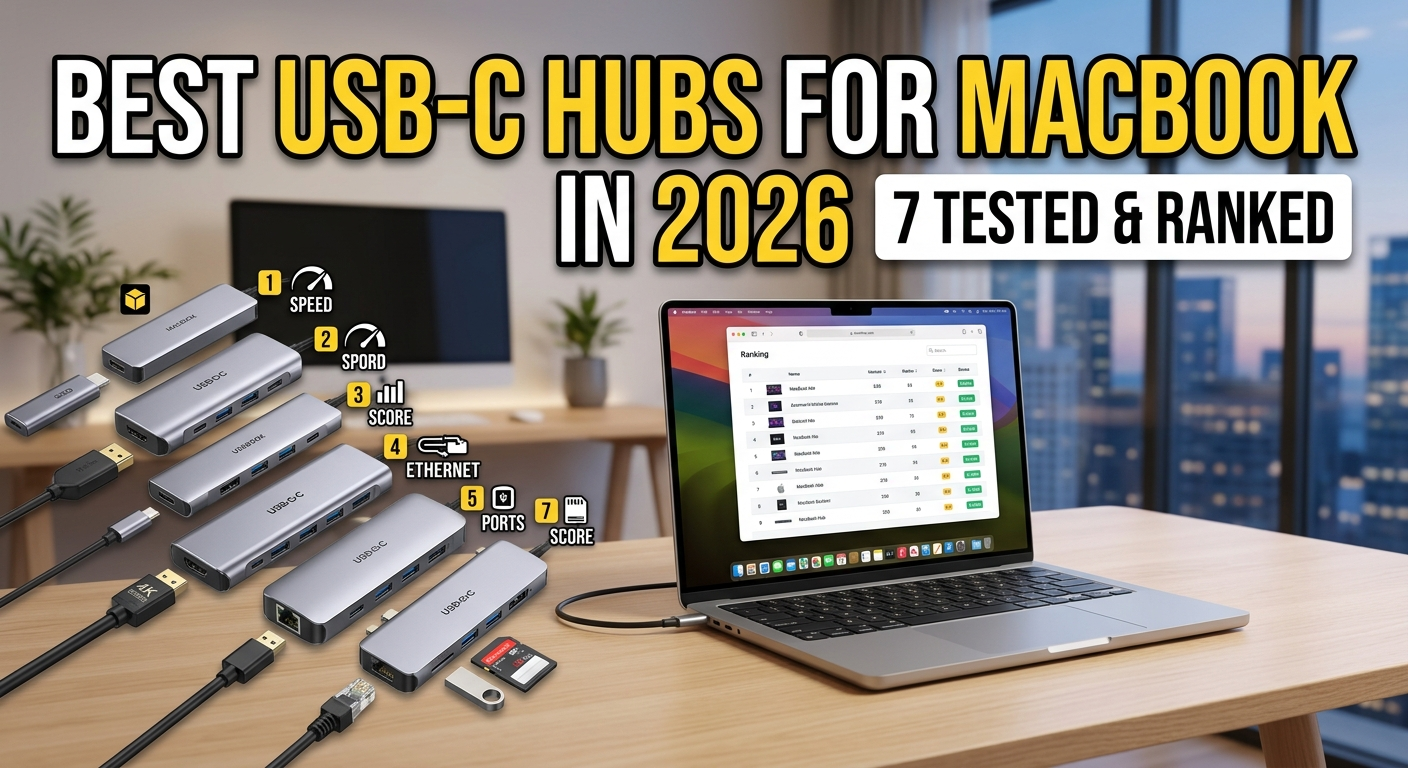
We tested 7 of the most recommended hubs across every price point and use case. Here are the ones worth buying — and which one is right for you.
Quick Comparison: Best USB-C Hubs for MacBook 2026
| Hub | Ports | 4K Output | Power Delivery | Best For | Price |
|---|---|---|---|---|---|
| Anker 555 8-in-1 | 8 | 60Hz | 85W | Best overall | ~$50 |
| UGREEN Revodok Pro 9-in-1 | 9 | 60Hz | 85W | Best value desk hub | ~$30 |
| Anker 341 7-in-1 | 7 | 30Hz | 100W | Best budget pick | ~$49 |
| Satechi Slim V3 | 5 | 60Hz | 100W | Best for MacBook Pro | ~$95 |
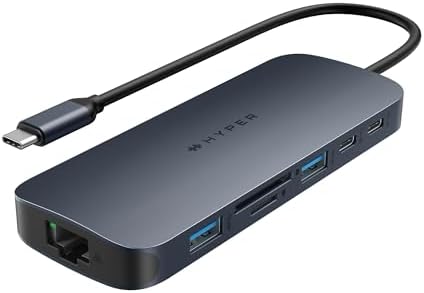
| HyperDrive 10-in-1 | 10 | 30Hz | 100W | Best for travelers | ~$99 |
| Hiearcool 7-in-1 | 7 | 30Hz | 100W | Best under $20 | ~$20 |
| CalDigit TS4 | 18 | 60Hz | 98W | Best Thunderbolt dock | ~$350 |




Before You Buy: What MacBook Users Must Know
The M1/M2/M3 One-Display Limit
This is the most important thing to understand before buying a USB-C hub for MacBook. Base M1, M2, and M3 MacBook chips natively support only one external monitor, requiring DisplayLink-enabled hubs to extend beyond Apple’s single display limitation for dual or triple monitor workflows.
If you own a base MacBook Air (M1, M2, or M3) and want two external monitors, a standard USB-C hub will not work for the second display. You’ll need a hub with DisplayLink technology, which requires a software driver but unlocks dual-monitor support on base-chip Macs. MacBook Pro with M1 Pro, M1 Max, M3 Pro, or M3 Max chips support multiple displays natively — no DisplayLink needed.
Power Delivery: How Much Do You Need?
Look for hubs that offer passthrough charging, so you can charge your laptop even though you are using up one of the laptop’s USB-C ports for the hub itself. Most don’t ship with a charger, so you’ll need to add your own, and remember that it needs to be a 100W charger to give 85W and above charging if offered by the hub.
As a rule:
- MacBook Air (all models): 30W minimum, 65W+ recommended
- MacBook Pro 14-inch: 67W minimum, 96W+ recommended
- MacBook Pro 16-inch: 96W minimum, 140W ideal
USB-C Hub vs Thunderbolt Dock
A USB-C hub is portable, bus-powered, and affordable. It connects via your MacBook’s USB-C port and is the right choice for most users. A Thunderbolt dock sits on your desk, requires its own power supply, and delivers maximum bandwidth and port count for power users. For most MacBook users, a USB-C hub handles everything: external display, peripherals, charging, and SD cards. Thunderbolt docks like the CalDigit TS4 are worth it only if you need daisy-chaining, multiple high-bandwidth devices like external SSDs, or more than two displays.
Now let’s get into the picks.
1. Anker 555 8-in-1 — Best Overall USB-C Hub for MacBook
Price: ~$50 | Ports: 8 | 4K Output: 60Hz | Power Delivery: 85W
If you only read one entry in this list, make it this one. The Anker 555 is the hub that comes up as the top recommendation across more expert reviews than any other model in 2026 — and for good reason.
The Anker 555 has been the top overall pick since its release, and it continues to earn that spot in 2026. It covers every port most people need in a compact, well-built aluminum body that fits easily in a laptop bag. In testing, the 4K 60Hz HDMI output was clean and stable across every laptop tried. The 85W power delivery passthrough kept a MacBook Pro 14 and Dell XPS charged while driving a monitor and peripherals.
What you get: 4K@60Hz HDMI, 2× USB-A 3.0, 2× USB-C (one data, one 85W PD), SD and microSD card reader, Gigabit Ethernet.
The 4K@60Hz output is a meaningful step up from cheaper hubs that are limited to 30Hz — 60Hz is the difference between smooth, natural motion and a display that feels slightly sluggish, especially when scrolling or moving windows. At under $50, the Anker 555 is the only hub in this price range with 60Hz output.
One honest caveat: the Anker 555 runs warmer than premium alternatives under full load. Anker notes surface temperatures can reach around 149°F when all ports are in use simultaneously. This is normal for hubs of this type and doesn’t affect performance or reliability, but it’s worth knowing if the hub will sit directly on a heat-sensitive surface.
Best for: MacBook Air and MacBook Pro users who want a single portable hub that handles the monitor, charging, SD card, and peripherals without overspending.
Pros: 4K@60Hz at a budget price, reliable Realtek chip, compact, aluminum build, SD card slots, Gigabit Ethernet Cons: Runs warm under heavy load, single HDMI output
2. UGREEN Revodok Pro 9-in-1 — Best Value Desk Hub
Price: ~$30 | Ports: 9 | 4K Output: 60Hz | Power Delivery: 85W
If you want a step up from the Anker 555 with a few more ports and a braided cable that feels more premium on a desk, the UGREEN Revodok Pro 9-in-1 is the natural upgrade.
The UGREEN Revodok Pro 9-in-1 is the go-to hub for MacBook Pro and MacBook Air users who want a complete desk connectivity solution in a portable package. 4K@60Hz HDMI, Gigabit Ethernet, 85W Power Delivery, 10Gbps data ports, and dual card readers cover every daily MacBook desk scenario through a single USB-C connection — compatible with the full Mac M1 through M5 lineup.
What you get: 4K@60Hz HDMI, 3× USB-A (10Gbps), 2× USB-C (10Gbps + 85W PD), SD and microSD card reader, Gigabit Ethernet, braided cable.
The 10Gbps USB-A and USB-C data ports are a notable step up over the Anker 555’s 5Gbps data ports. If you regularly transfer large files — RAW photos, video footage, large backups — the speed difference is tangible. For casual use, both hubs perform identically.
UGREEN also offers a 2-year warranty and a reputation for firmware compatibility with Apple Silicon updates, which gives it a slight edge for longevity over no-name alternatives.
Best for: MacBook users who want a reliable desk hub with faster data ports and a premium feel without paying Thunderbolt dock prices.
Pros: 10Gbps data ports, 4K@60Hz, braided cable, solid build, M1–M5 compatible, 2-year warranty Cons: Slightly pricier than the Anker 555, single HDMI output
3. Anker 341 7-in-1 — Best Budget USB-C Hub
Price: ~$49 | Ports: 7 | 4K Output: 30Hz | Power Delivery: 100W
Not everyone needs Gigabit Ethernet or 10Gbps data ports. If you primarily use Wi-Fi, connect a monitor and a few USB-A peripherals, and want to spend as little as possible, the Anker 341 is the most honest budget pick available.
At around $22, the Anker 341 is the cheapest hub worth recommending. It covers the essentials: HDMI 4K@30Hz, two USB-A ports, USB-C data, SD and microSD readers, and 100W PD passthrough. It lacks Ethernet, but if you’re on Wi-Fi anyway, that’s not a loss.
The 4K output is capped at 30Hz rather than 60Hz, which is the main trade-off versus the Anker 555. For static productivity work — documents, spreadsheets, email — 30Hz at 4K looks perfectly fine. For video editing previews or anyone sensitive to motion, you’ll notice the difference.
Best for: Students, casual users, or anyone who just needs to connect a monitor and a couple of USB-A accessories without spending more than $25.
Pros: Exceptional value, 100W PD passthrough, compact, plug-and-play, trusted Anker build Cons: No Ethernet, 4K@30Hz only, 5Gbps data ports
4. Satechi Slim V3 — Best Hub for MacBook Pro Design Fans
Price: ~$95 | Ports: 5 | 4K Output: 60Hz | Power Delivery: 100W
If you care about aesthetics alongside performance, the Satechi Slim V3 is in a category of its own. Its aluminum body precisely matches the finish of Apple’s Space Gray and Silver MacBook Pro models — it looks like Apple designed it themselves.
The port count is intentionally minimal: HDMI 4K@60Hz, one USB-A 3.0, one USB-C data port, one USB-C 100W PD passthrough, and a 3.5mm audio jack. Satechi consistently nails the balance of design and function. The V3 delivers 4K@60Hz HDMI, 100W PD passthrough, and an aluminum finish that matches your MacBook. It costs more than the Anker 555 but the 60Hz output and build quality justify the jump.
At five ports, the Satechi is intentionally lean — it’s designed for MacBook Pro users who mostly use their laptop’s built-in ports and just need a clean, minimal adapter for display and charging when at their desk.
Best for: MacBook Pro users who prioritize clean desk aesthetics and want an adapter that visually matches their laptop.
Pros: Perfect MacBook color matching, premium aluminum build, 4K@60Hz, 100W PD, audio jack Cons: Only 5 ports, no Ethernet, no SD card reader, pricier per port than rivals
5. HyperDrive 10-in-1 — Best for Frequent Travelers
Price: ~$99 | Ports: 10 | 4K Output: 30Hz | Power Delivery: 100W
Frequent travelers have a specific problem: conference rooms with older projectors, hotel desks with Ethernet, clients with USB-A presentations, and the constant need to charge everything from one bag. The HyperDrive 10-in-1 is built for exactly this.
The HyperDrive 10-in-1 is one of the few hubs that includes both HDMI and VGA outputs, making it useful if you present in conference rooms with older projectors. Add in Gigabit Ethernet, three USB-A ports, and SD slots, and it covers nearly every scenario you’ll encounter on the road.
What you get: HDMI 4K@30Hz, VGA, 3× USB-A 3.0, USB-C PD passthrough (100W), Gigabit Ethernet, SD + microSD card readers, 3.5mm audio jack.
The VGA output alone justifies this hub for road warriors — it’s the rare adapter that guarantees you can connect to any projector or conference room display regardless of age. The 3× USB-A ports and SD/microSD combination cover every peripheral scenario.
The 4K HDMI is capped at 30Hz, which is fine for presentations and productivity but not ideal for video work. If your travel setup requires 60Hz output, the Anker 555 or UGREEN Revodok Pro are better options.
Best for: Business travelers, presenters, and anyone who needs maximum port coverage across legacy and modern display standards on the road.
Pros: HDMI + VGA dual display output, 3× USB-A, Gigabit Ethernet, SD/microSD, audio, 100W PD Cons: 4K@30Hz only, slightly bulkier than single-cable rivals, higher price per port
6. Hiearcool 7-in-1 — Best Ultra-Budget Pick
Price: ~$20 | Ports: 7 | 4K Output: 30Hz | Power Delivery: 100W
If budget is the absolute top priority and you just need the basics covered, the Hiearcool 7-in-1 is the most purchased budget hub in this category on Amazon — and the user reviews back it up.
Hiearcool has quietly become one of the most popular budget hub brands on Amazon — and the numbers back it up. With 51,000+ reviews averaging 4.5+ stars and 9,000+ monthly buyers, it’s the most purchased MacBook USB-C hub by a wide margin. At this price it’s a genuine no-risk purchase for most MacBook users.
What you get: HDMI 4K@30Hz, 3× USB-A, USB-C PD passthrough (100W), SD + microSD card readers. No Ethernet.
At $17, the trade-offs are clear: no Gigabit Ethernet, HDMI limited to 30Hz, and plastic build rather than aluminum. But for a student connecting a monitor and a USB-A keyboard with no need for wired internet, the Hiearcool does exactly what’s asked of it — reliably.
Best for: Students, occasional users, and anyone who needs the absolute minimum hub to connect a display and USB-A accessories.
Pros: Lowest price in this roundup, 51,000+ Amazon reviews, plug-and-play, 100W PD, SD card reader Cons: No Ethernet, 4K@30Hz only, plastic build, slower USB-A ports
7. CalDigit TS4 — Best Thunderbolt 4 Dock for Power Users
Price: ~$350 | Ports: 18 | 4K Output: 60Hz | Power Delivery: 98W
The CalDigit TS4 is not a USB-C hub — it’s a full Thunderbolt 4 docking station. It belongs in this list because if you have a permanent desk setup and need maximum connectivity, nothing else comes close.
With 18 ports packed into a compact aluminum chassis, the TS4 covers everything a power user could need: triple Thunderbolt 4 downstream ports, 2.5 Gigabit Ethernet, and UHS-II SD card readers. CalDigit designed the TS4 as a single-cable desktop solution. Connect one Thunderbolt 4 cable to your laptop, and you get dual external displays, high-speed data transfer across all your peripherals, and up to 98W of laptop charging.
The full port list is staggering: 3× Thunderbolt 4 (40Gbps), 3× USB-C (10Gbps), 5× USB-A (10Gbps), 2.5Gb Ethernet, UHS-II SD and microSD card readers, DisplayPort 1.4, 3.5mm audio in/out, optical audio out, and a security slot — all from a single cable to your MacBook.
CalDigit has consistently updated the TS4’s firmware to support new Mac and Windows hardware, and that ongoing support is a real differentiator. When Apple ships a new MacBook, CalDigit typically releases a firmware update within days to ensure full compatibility — a level of long-term support you don’t get from most hub makers.
One important note for display output: the TS4 uses DisplayPort rather than HDMI. You’ll need DisplayPort cables or a DisplayPort-to-HDMI adapter for HDMI monitors. This is a minor inconvenience but worth knowing before you buy.
Best for: MacBook Pro power users with a permanent desk setup who need dual monitors, maximum ports, and the bandwidth to run multiple high-speed devices simultaneously.
Pros: 18 ports, Thunderbolt 4, 2.5Gb Ethernet, UHS-II card readers, 98W charging, excellent firmware support, aluminum build, single-cable desk solution Cons: Expensive (~$380), requires its own power supply, no HDMI port (DisplayPort only), overkill for casual users
Which USB-C Hub Should You Buy? (Decision Guide)
Use this to cut straight to the right pick for your situation:
You’re a student or casual user on a tight budget: → Hiearcool 7-in-1 (~$17) or Anker 341 (~$22)
You want the best all-around hub under $40: → Anker 555 8-in-1 (~$38) — our top recommendation for most people
You want faster data ports and a premium feel for your desk: → UGREEN Revodok Pro 9-in-1 (~$55)
You care about MacBook color-matching and minimal design: → Satechi Slim V3 (~$60)
You travel frequently and need HDMI + VGA + Ethernet in one hub: → HyperDrive 10-in-1 (~$70)
You have a permanent desk setup and need a full workstation dock: → CalDigit TS4 (~$380)
You have a base MacBook Air and want dual monitors: → Look for a DisplayLink-enabled hub (UGREEN Revodok Pro 13-in-1 is the best option for this)
Frequently Asked Questions
What is the best USB-C hub for MacBook in 2026? For most MacBook users, the Anker 555 8-in-1 (~$38) is the best overall pick. It delivers 4K@60Hz HDMI, Gigabit Ethernet, SD card readers, 85W power delivery, and multiple USB-A/USB-C ports in a compact aluminum design at an unbeatable price. For power users who need a permanent desk solution with maximum ports, the CalDigit TS4 Thunderbolt 4 dock is the premium choice.
Do USB-C hubs work with MacBook Air M3? Yes. All hubs in this list work with MacBook Air M3. The important caveat is that the base M3 chip supports only one external monitor natively. If you need two external displays, you’ll need a hub with DisplayLink technology (and install the free DisplayLink driver). MacBook Pro M3 Pro/Max supports multiple displays natively without DisplayLink.
What’s the difference between a USB-C hub and a Thunderbolt dock? A USB-C hub connects via a standard USB-C port and is portable, affordable, and bus-powered (no separate power supply needed). A Thunderbolt dock requires a Thunderbolt-capable port, needs its own power supply, and delivers significantly more bandwidth — enabling multiple high-resolution displays, Thunderbolt daisy-chaining, and faster data transfer for power users. For most people, a USB-C hub is all they need.
Can a USB-C hub charge my MacBook while in use? Yes, as long as the hub has Power Delivery (PD) passthrough — a feature all 7 hubs in this list include. The charging wattage varies: the Anker 555 delivers 85W, which is enough for MacBook Air and MacBook Pro 14-inch. The MacBook Pro 16-inch benefits from 96W+ for full-speed charging.
Will a USB-C hub work with MacBook Pro M4 and M5? Yes. All USB-C hubs in this list are compatible with MacBook Pro M4 and M5 chips, as well as the full Apple Silicon lineup from M1 onward. Thunderbolt hubs like the CalDigit TS4 are designed to receive firmware updates for new Apple hardware compatibility.
Are cheap USB-C hubs safe for MacBook? Most reputable budget hubs — including those from Anker and UGREEN — are safe, using quality controller chips and built-in surge protection. Very cheap, unbranded hubs from unknown sellers carry more risk. Stick to established brands (Anker, UGREEN, Satechi, HyperDrive, CalDigit) and read Amazon reviews carefully before buying anything under $15.
Also read:
- 🎧 Apple AirPods 4 Review: Best Earbuds for iPhone in 2026?
- 🎧 Anker Soundcore Space Q45 Review: Best Budget Noise-Cancelling Headphones
Last updated: April 2026 | MesterDeals.com This article contains Amazon affiliate